PDF Processor
Purpose: Use the PDF Processor block to extract structured data from your documents so it's ready to use across the rest of your Transform workflow.
1. Find the PDF Processor in the Skill Library
The PDF Processor lives in your Skill Library, ready to drop into an agent. It pulls structured data out of your documents so later steps can work with it.
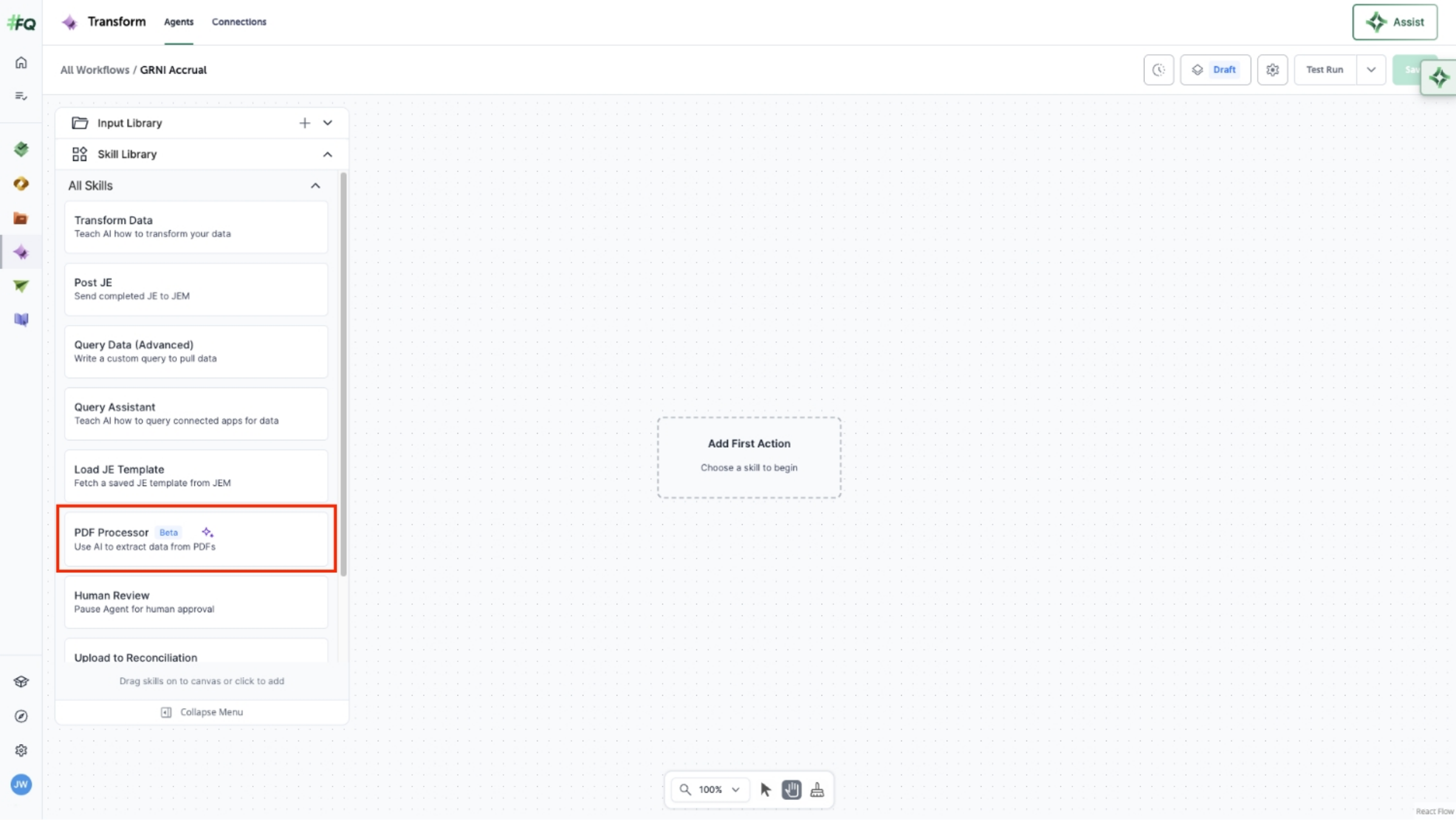
The PDF Processor in the Skill Library.
2. Upload your documents and set up extraction
Drag the PDF Processor block onto your canvas and upload your documents. Then define the fields you want to pull, either by starting from a template for common document types or building your own configuration from scratch.
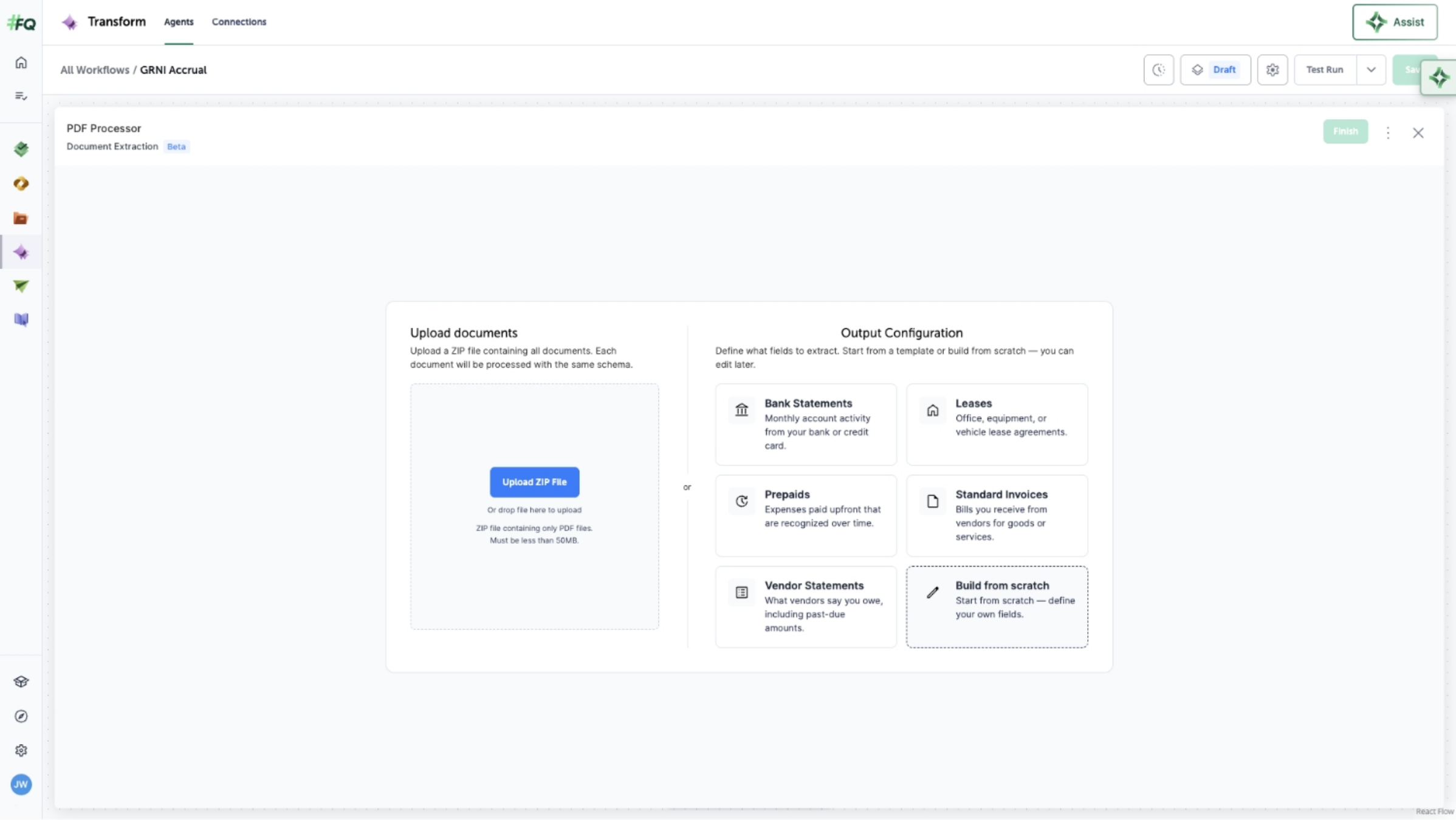
Upload documents and define the fields to extract.
3. Process your documents and review the data
Once your fields are set, the block runs through each document and extracts the data. Review the results for accuracy and completeness, then save.
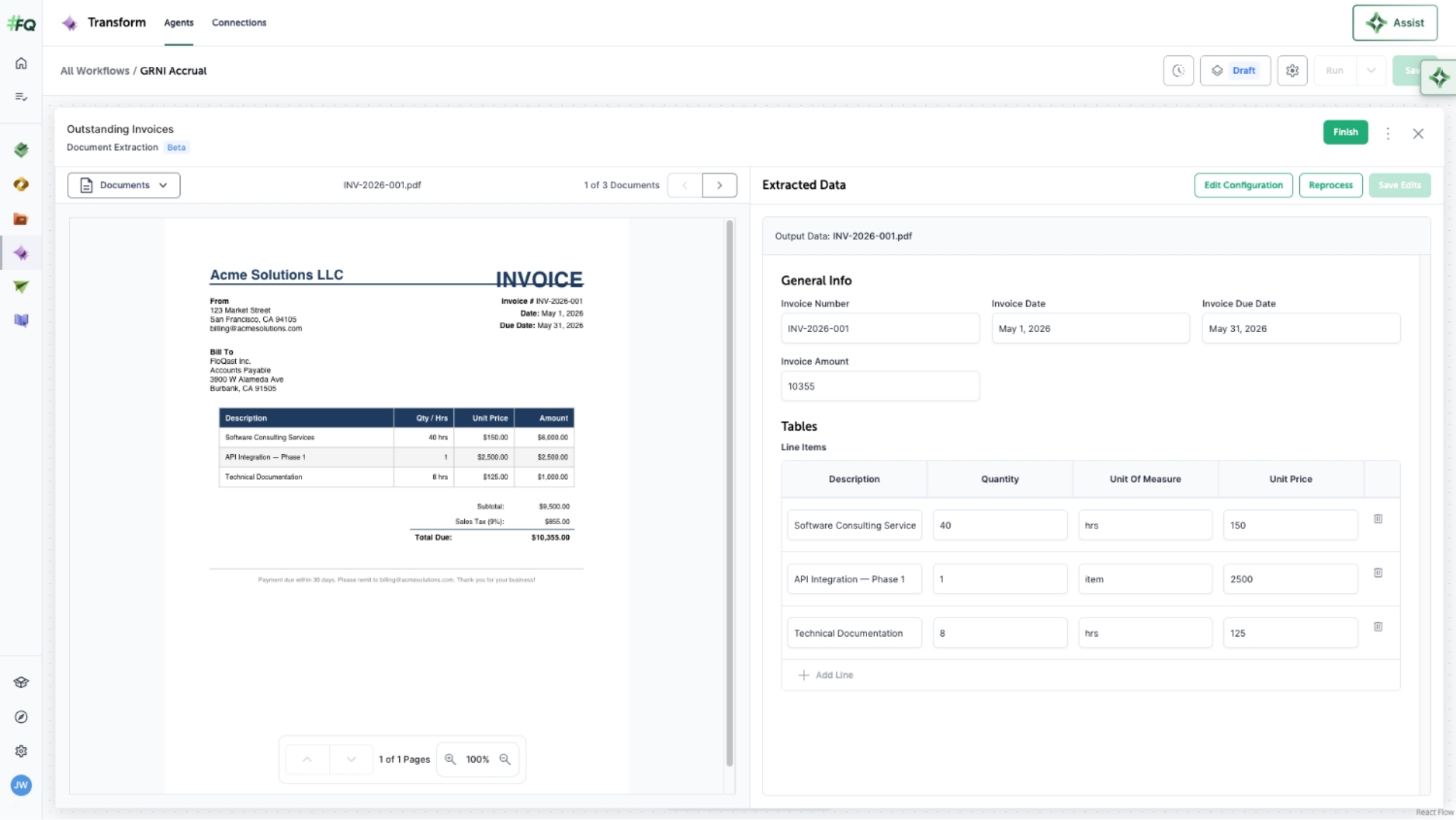
Review the extracted data before saving.
4. Use the extracted data downstream
Your saved data is available to the blocks that follow, so you can keep shaping and transforming it in later steps of your workflow.
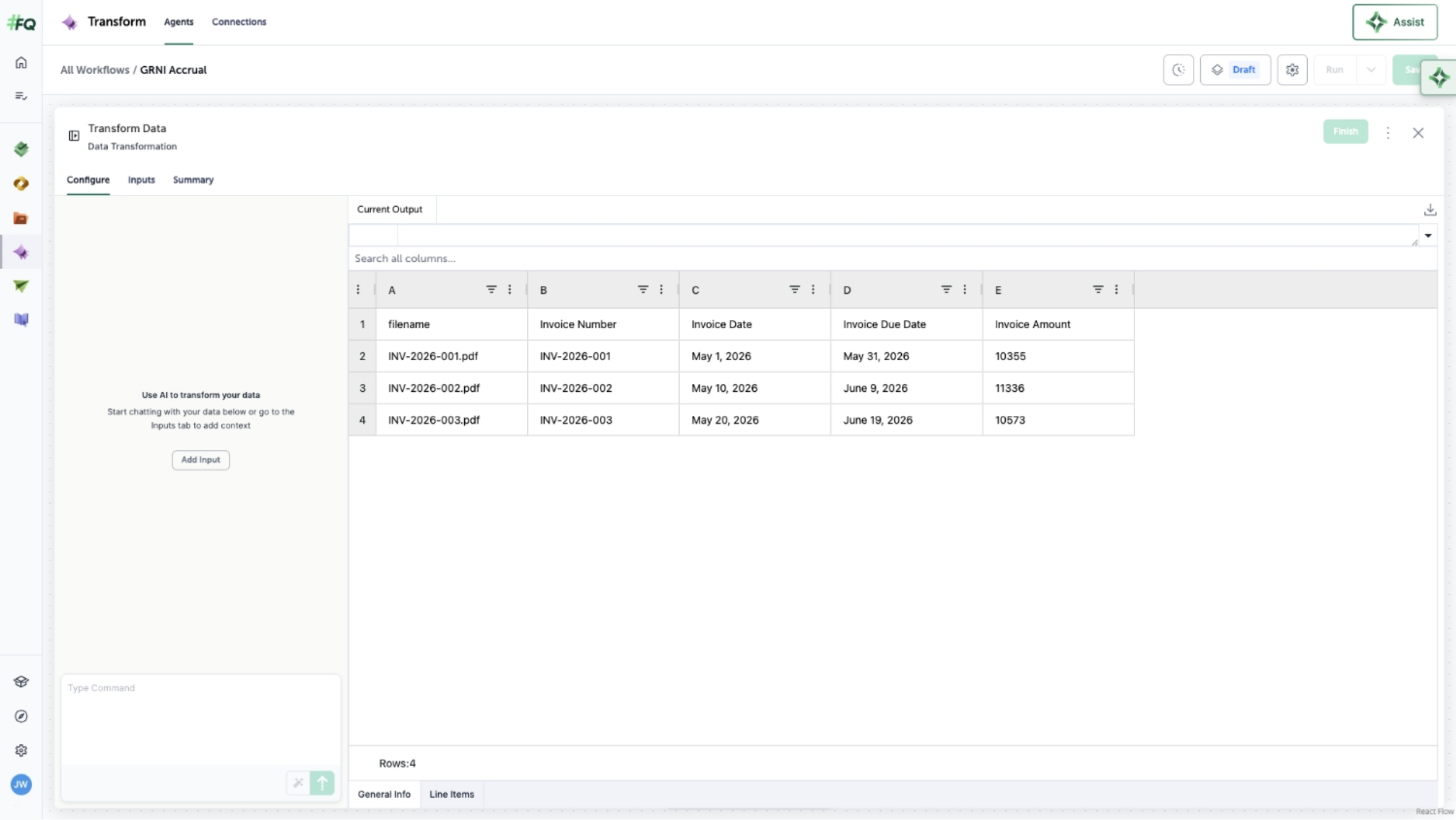
Extracted data flows into the blocks that come next.